Getting started
Basically runs entirely in your browser - there is nothing to install to use it. Open the IDE at ba.sical.ly and you're ready to go.
This guide walks through running your first program, then generating one with AI.
Run a sample program
Open the IDE at ba.sical.ly.
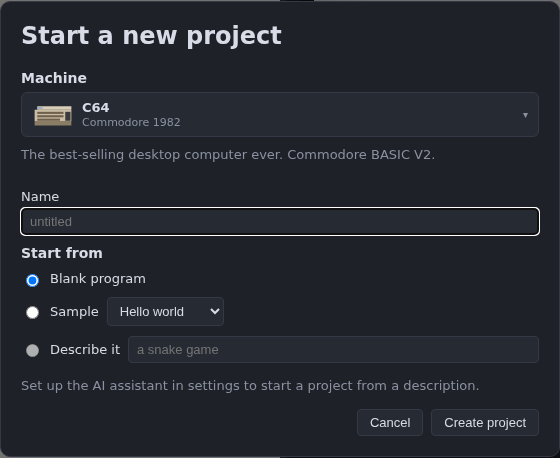
Choose File ▸ New project. Everything a program needs to start is here: which machine to write for, what to call the project, and what to begin with.
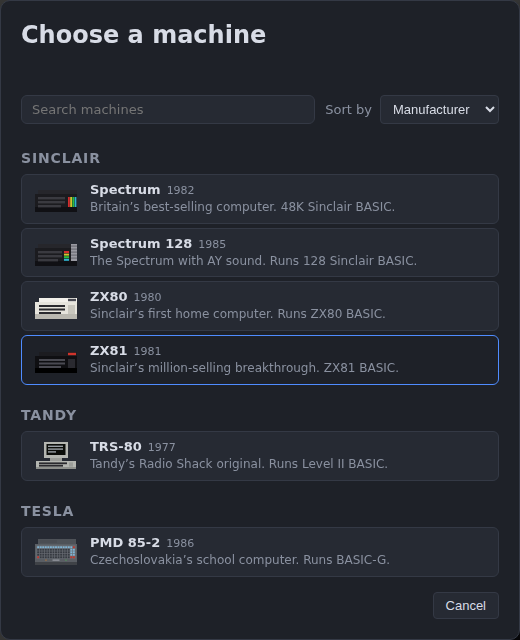
Press the machine to open the picker and pick one. Every machine has its own dialect and its own emulator, so each is shown with the year it came out and a line naming the BASIC it runs.
Type in the search box to narrow the list by machine, maker or BASIC, and use Sort by to arrange it: by manufacturer (how it opens), by model name, by year, or by the BASIC each machine runs - which is the one that puts machines sharing a dialect together. The picker reopens the way you left it.
Under Start from, choose Sample and pick Breakout, then press Create project.
Press ▶ Run (or
Ctrl+Enter). Basically tokenizes your source to a machine image and boots it in the emulator through the ROM's own load path.Click the emulator screen to give it focus, then play - on most machines the paddle keys are shown on screen when the game starts.
Write your own
Create a project and choose Blank program. The editor highlights your dialect's keywords, autocompletes them (with documentation), and runs the tokenizer as you type so mistakes are underlined inline. A byte counter in the status bar shows how much of the machine's RAM your program uses.
Each machine has its own BASIC rules - see Writing BASIC for the conventions and the per-machine notes.
Generate code with AI
Basically can write programs for you with AI:
- Click ✦ AI to open the assistant panel.
- Select your AI provider and enter an API key.
- Ask for what you want ("write a snake game", "add a high-score counter").
- Apply a suggestion with one click: replace the editor, merge by line number, or replace and run.
Answers arrive already tried out. Before you are offered anything, the IDE runs the program on the emulator automatically and verifies it.
You can also start a whole project this way: choose File ▸ New project, pick a machine, and under Start from choose Describe it and say what you want ("a snake game"). The project is created and the assistant starts writing it for that machine.
Type in a printed listing from a photo
Got a listing on paper - a magazine type-in, a manual, an old printout? Take a photo of it and the assistant will type it in for you. Attach it with the camera button beside Send, paste a picture into the message box, or drop an image file onto the editor; on a phone, the attach button offers the camera as well as your photo library. You do not have to type anything with it - just send the picture.
What comes back is an ordinary answer, applied the same way as any other: merge it by line number, or replace the program. So a listing that runs over several pages can be photographed a page at a time - each page merges onto the last.
A few things worth knowing:
- Half a page reads better than a whole one. The picture is scaled down before it is sent, so a tighter shot means more detail per printed character. Photographing a column at a time beats photographing a whole spread.
- A long listing may arrive in two parts. If the answer runs out of room the panel offers Continue this answer, and the rest follows.
- Check what comes back against the paper. Print is genuinely ambiguous - a letter O against a zero, a one against a capital I - and the assistant will say which characters it could not settle. Those are the lines to look at first.
Save and load
- Save project writes your whole document as a
.zipbundle (a zip of your BASIC source plus any machine-code/data blocks and a metadata file), and Open project loads one back — switching to the machine the project was saved for — or opens a plain.bas/.txtas source, using the File System Access API where available with a download fallback. Your work also autosaves to the browser's local storage. - To download just the BASIC listing as a
.bas, right-click the BASIC editor tab and choose Download .bas. - You can import an existing machine image (for example a ZX81
.Pfile) back into editable source.
Run on real hardware
The link to the real machine runs both ways. When a program works in the emulator, you can export it to a real machine over cassette audio, a downloadable image file, or a serial bridge - and you can import a program back off the machine (by decoding its cassette output or loading its native image) to edit and test it in the IDE. See Running on real hardware.
Install as an app
Basically is an installable PWA - use your browser's Install / Add to Home Screen action to run it standalone on desktop or mobile.
The app works almost entirely offline, so you can sit on a flight, train or mountain summit and tinker with that game you're working on at home. There are a couple of things to be aware of:
- AI support currently only supports cloud-based solutions and requires Internet access at all times to work. In future we might add local LLM support.
- Running the emulator usually requires downloading a third-party ROM for the target machine, which are often large blobs and can have complex licencing rules. You should run the emulator before going offline, to ensure any runtime dependencies are cached and ready to use. A ROM you supply yourself (see below) is already stored in your browser, so it needs no download at all.
Join the community
Got stuck, or made something you want to show off? Join the Basically Discord - it's the quickest way to get help, share your programs, and follow what's coming next.